How to connect Ghost to Fullturn to publish posts automatically
By the Fullturn team · · 3 min read
Ghost is the quickest of the beta connectors to set up. You create a custom integration in Ghost, copy its Admin API key, and paste it into Fullturn with your site address. Fullturn then publishes posts, uploads images, and reads each post back to confirm it.
What you need first
- A Ghost site (Ghost(Pro) or self-hosted) where you are an administrator.
- The site's address.
- A fresh custom integration with an Admin API key.
Steps
1. Create a custom integration in Ghost
In Ghost admin, open Settings, then Integrations, choose Add custom integration, and name it Fullturn. Ghost shows an Admin API key and an API URL.
Screenshot: Ghost Settings, Integrations, custom integration with Admin API key 2. Copy the Admin API key exactly
The key has two parts joined by a colon:
id:secret. Copy the whole thing. Fullturn rejects a key that is not in this shape.3. Choose Ghost in Fullturn
In Fullturn, open Content and start Set up your website. In step 1, choose Ghost (beta) and press Continue.
4. Enter the address and the key
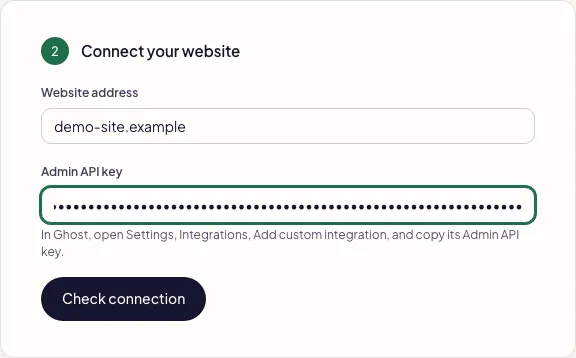
In step 2, fill in Website address (your Ghost site's address, the API URL Ghost shows) and Admin API key, then press Check connection. Fullturn makes one read-only request and publishes nothing.
- Fullturn can connect to your Ghost site. Fullturn saves the connection.
- Ghost refused these details. Check the key or token and try again. The key or address is wrong.
- Fullturn could not reach that address. Check it is your public website.
How an article is published
Fullturn signs each request with a short-lived token made from your key, uploads the featured image to Ghost, and creates the post. When it edits an article it first reads the post's current revision so it never overwrites a change you made in Ghost, then updates it.
Common errors and fixes
- Paste the key exactly as Ghost shows it: two parts joined by a colon.
- You pasted the wrong key or only half of it. Copy the full Admin API key, which looks like
id:secret. - Ghost adminApiKey must be in 'id:secret' format
- The saved key is not in the
id:secretform. Edit the Ghost destination and paste it again. - Ghost refused these details. Check the key or token and try again.
- The key was rejected, for example because the integration was deleted. Make a new custom integration.
- Ghost answered in an unusual way, so Fullturn did not save the connection.
- The address may not be the Ghost site's address. Use the API URL Ghost shows on the integration. Fullturn saved nothing.
- Ghost publish failed: HTTP 422
- Ghost rejected the post content or a field. Open the article in Fullturn for the details.
- Ghost update preload failed: HTTP 404
- The post Fullturn published before no longer exists in Ghost. Check it before publishing again.
- Ghost cannot stage changes to a live or scheduled post as a separate draft. Review the existing post before changing its visibility.
- Fullturn will not turn a live Ghost post into a draft. Edit it as a live post or change its status in Ghost.
- Ghost image upload failed: HTTP 413
- The image is too large for your Ghost host. Use a smaller image.
FAQ
- Is Ghost publishing supported?
- It is in beta: tested against Ghost's documentation, with no recorded publish on a customer's live Ghost site.
- Does Fullturn upload images to Ghost?
- Yes. It uploads the featured image through Ghost's image upload and attaches it to the post.
- Will Fullturn overwrite edits I make in Ghost?
- When it updates an article it reads the post's current revision first and refuses a stale write.
- Which Ghost key do I need?
- The Admin API key of a custom integration.
- Can I remove access later?
- Yes. Delete the custom integration in Ghost and Fullturn can no longer publish.