How to set up your first SEO site and autopilot in Fullturn
By the Fullturn team · · 6 min read
Fullturn's content side reads your website, learns what you sell, plans articles from real keyword data, writes and fact-checks them, and publishes them to your site. Autopilot is the part that keeps that pipeline filled so you are not briefing each article by hand.
Setting up a site takes four short steps. This guide covers them, the choices that matter in autopilot, and the platforms you can publish to.
What you need first
- Your website's public address.
- The login details for the platform it runs on, if you want Fullturn to publish for you. The per-platform guides below say what each one needs.
- A Fullturn role that can add sites. Your plan includes a set number of sites, and Fullturn tells you the number when you reach it.
Steps
1. Open Set up your website
In Fullturn, open Content. If you have no site yet, start Set up your website (the page is
/seo/setup). It says: "Four short steps. Fullturn reads your site and learns what to write."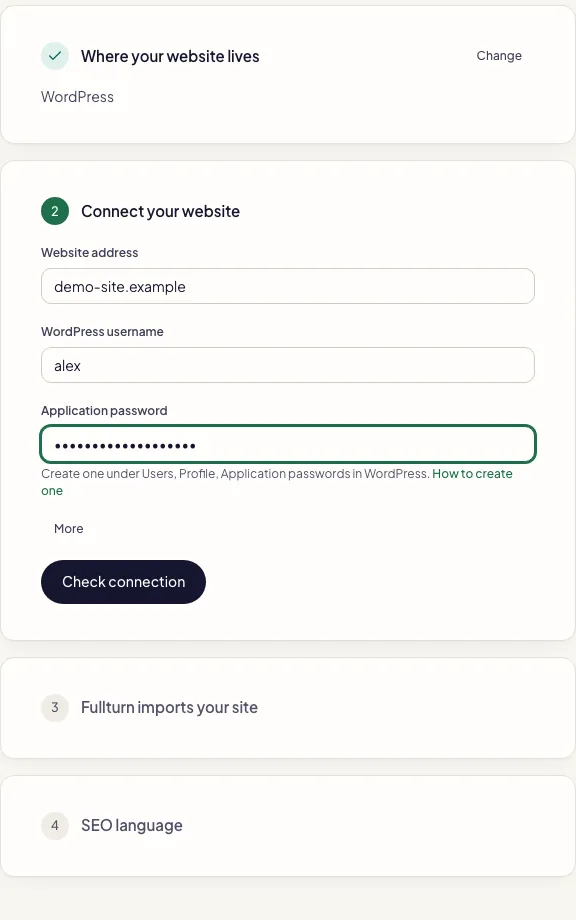
2. Step 1: say where your website lives
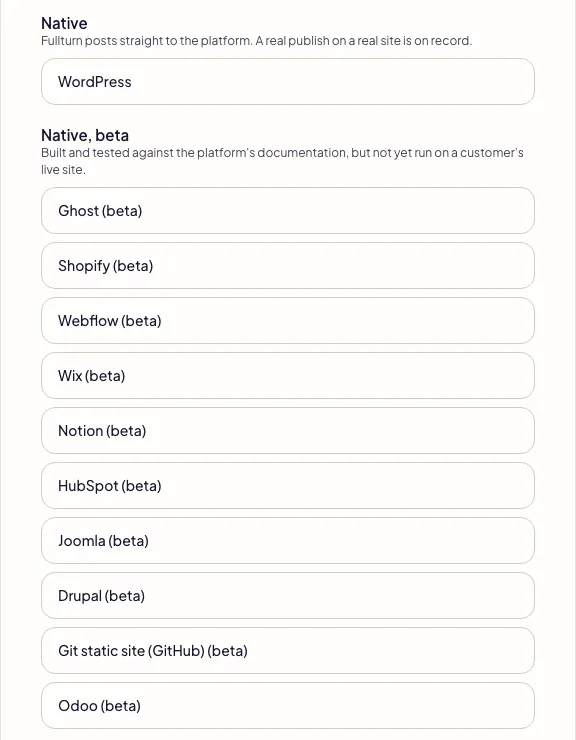
Pick your platform. Fullturn publishes straight to WordPress, Ghost, Shopify, Webflow, Wix, Notion, HubSpot, Joomla, Drupal, Odoo and static sites in GitHub, or to any site that can receive a webhook. Any other site can use drafts only, where Fullturn writes and fact-checks each article and you paste it in.
- WordPress is the platform with a recorded publish on a real site.
- Wix, Webflow, Shopify, Ghost and HubSpot are in beta, and the setup screen labels them beta.
3. Step 2: connect your website
Enter your address and the platform's details, then press Check connection. Fullturn checks the details with one read-only request and saves nothing unless it works. You can pick drafts only and press Add my website instead; Fullturn then writes and fact-checks articles but never sends them anywhere, and each finished article has buttons to copy it as HTML or Markdown and one to tell Fullturn where you published it.
4. Step 3: let Fullturn read your site
Fullturn reads your website and learns what you sell. This takes a minute or two. If it has not found posts on your site yet, it says so and keeps reading in the background.
5. Step 4: choose the SEO language
English is the only language today. More languages are marked as coming. Press Finish.
6. Switch autopilot on and choose a publishing mode
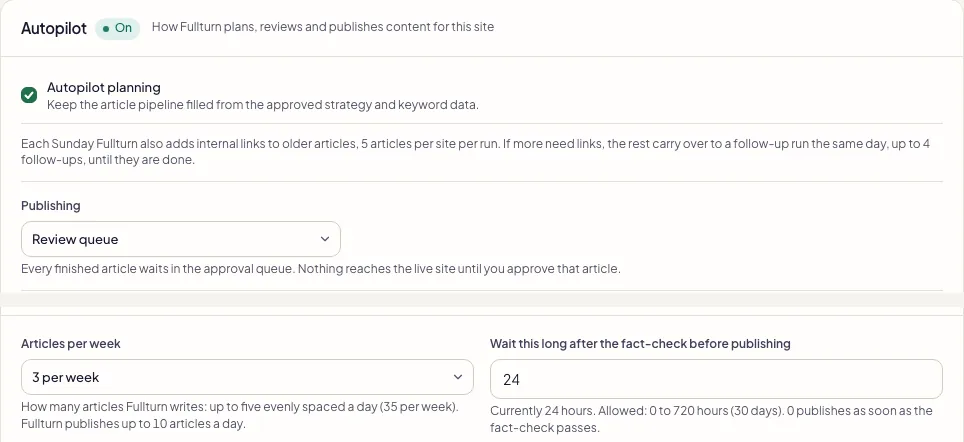
Open Content, then Site settings, then Autopilot. The status pill shows On or Off.
- Autopilot planning: keeps the article pipeline filled from the approved strategy and keyword data. Off, ideas and drafts stay ready but no new article work is scheduled automatically.
- Publishing: Manual (nothing is published unless you press Publish on the article), Review queue (every finished article waits in the approval queue, and nothing reaches the live site until you approve it) or Automatic (articles pass quality checks, wait for your review, and publish automatically if you do not approve them before the review window ends).
- Articles per week: 1, 2, 3, 5, 7, 14 or 21. This is how many articles Fullturn writes, up to three evenly spaced a day.
- Wait this long after the fact-check before publishing: the review window, 0 to 720 hours. 0 publishes as soon as the fact-check passes.
What the fact-check does
Before an article can publish, Fullturn checks it against official sources. By default an article the fact-check cannot confirm is held until it is fixed. The site setting for the fact-check mode lets an owner or admin choose instead to publish on schedule and show anything unconfirmed as a note in Fullturn on the article.
Other platforms and their connection details
These connectors are all in beta. Each asks for your website address first and then:
- Joomla: an API token from the Joomla user's profile (API Token tab; the Web Services plugins and the API token plugin must be on) and the numeric Category ID. No plugin is needed on the site. The address must be https.
- Drupal: JSON:API writes enabled, and either an account name and password for HTTP Basic sign-in over HTTPS (the core
basic_authmodule) or an OAuth bearer token from the Simple OAuth module. Content type, body field and image field are configurable. - Odoo: the database name, your user login, an API key (profile, Account Security, New API Key) and the numeric Blog ID.
- Notion: an internal integration token and a database ID, with the database shared with the integration.
- Static sites in GitHub (Astro, Hugo, Jekyll): a fine-grained personal access token with Contents read and write on one repository, the owner and repository names, an optional branch and articles folder, and the address pattern where an article appears. Fullturn commits each article as a Markdown file, your host rebuilds, and Fullturn checks the page appears.
- Webhook, Zapier or Make: a receiving address and an optional signing secret. Fullturn sends each finished article as signed JSON to an address you control.
Add Search Console
To see clicks, impressions and index checks, connect Google Search Console. See connect Google Search Console with a service account.
Common errors and fixes
- Your plan includes 1 site. Upgrade in Billing to add another.
- The number in the message is your plan's site limit. Upgrade under Billing, or remove a site.
- You can view this workspace but not change it. Ask an owner or editor.
- Your role is read-only. Ask an owner or editor to run the setup.
- Fullturn could not read your site yet.
- Fullturn could not fetch your pages. Check the address is public and not behind a login, then try again.
- Your website was not added. Try again.
- The site was not created. Check the address, then press the button again.
- The connection was not saved. Your website is added; try again to save the connection.
- The website exists but the connection failed to save. Press Check connection again; Fullturn does not create the site twice.
- The request did not go through. Try again.
- A network problem between your browser and Fullturn. Try again.
FAQ
- Will Fullturn publish without asking me?
- Only if you choose Automatic. Even then, each article waits out your review window, and you can approve or stop it before it publishes.
- How many articles will it write?
- As many as you set under Articles per week, up to 21. It publishes up to 10 a day.
- What if my platform is not on the list?
- Choose drafts only, or use the webhook route if your site can receive one. Fullturn still writes and fact-checks the article.
- Can I run several sites?
- Yes, up to your plan's site limit. Each site has its own autopilot settings.
- Can I change my mind about the connection?
- Yes. Edit the destination under Content, then Publishing.