How to connect Webflow CMS to Fullturn to publish blog posts automatically
By the Fullturn team · · 5 min read
Fullturn publishes each article as an item in a Webflow CMS collection, usually your Blog Posts collection. It needs a site API token and the collection's ID, and it has to know which fields of the collection hold the body and the image.
What you need first
- A Webflow site with a CMS collection for posts (for example Blog Posts), with a rich-text field for the body.
- A Webflow site API token that can read and write the CMS. For Fullturn to work out the live address of a post, the token also needs to read the site (
sites:read) and the CMS (cms:read). - The collection's ID.
- A custom domain on the Webflow site. Fullturn confirms a post's public address from the custom domain, and does not guess a
webflow.ioaddress.
Steps
1. Create the API token in Webflow
In Webflow, open your site's settings, find the Apps & integrations area and its API access section, and generate a site token. Give it CMS read and write, and site read. Copy the token. Webflow changes its screens, so follow Webflow's current help if the labels differ.
Screenshot: Webflow site settings, API access, new token with CMS read and write 2. Copy the collection ID
Open the CMS collection that holds your posts and copy its Collection ID from the collection's settings.
3. Choose Webflow in Fullturn
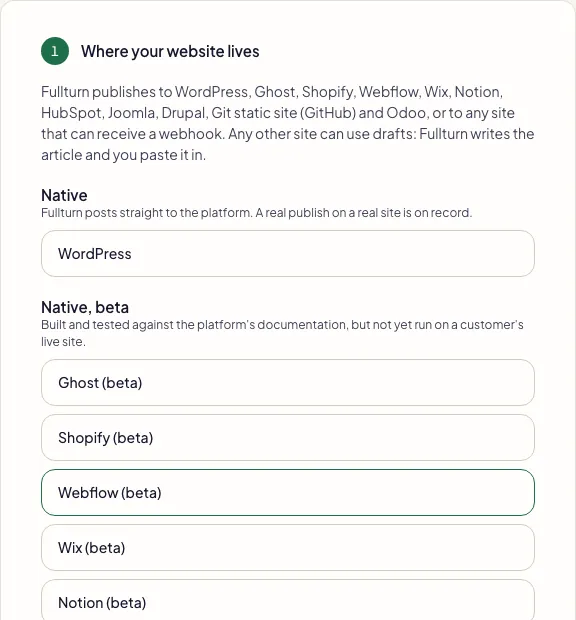
In Fullturn, open Content and start Set up your website. In step 1, choose Webflow (beta) and press Continue.
4. Enter the website address, token and collection ID
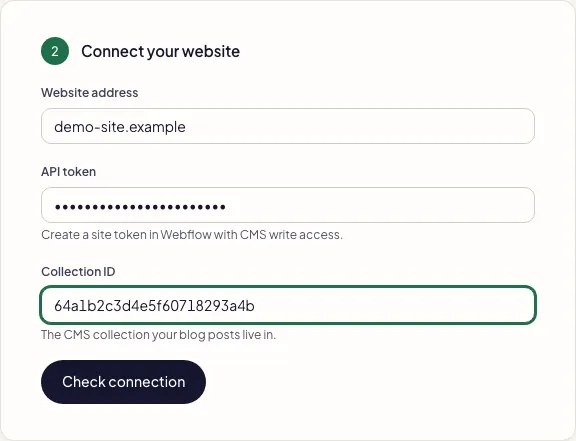
In step 2, fill in Website address, API token and Collection ID, then press Check connection. Fullturn makes one read-only request to Webflow and publishes nothing.
- Fullturn can connect to your Webflow site. Fullturn saves the connection.
- Webflow refused these details. Check the key or token and try again. The token or collection ID is wrong.
- Fill in every Webflow field. A box is empty.
5. Match the field names
Fullturn writes these fields of each item. Unless you change them, it expects:
name: the title, andslug: the slug. Every Webflow collection has both.post-body: the article body as HTML. This is the field's slug, not its label.main-image: the featured image, passed as an image address with the title as its alt text.
If your collection uses other field slugs, open Content, then Publishing, edit the Webflow destination and set Body field name and Image field name. The same form has Meta title field name, Meta description field name and Collection page path, which are optional.
How an article is published
Fullturn creates the item and publishes it live in one request, unless you choose to publish as a draft. When it edits an article it updates the same item. It then reads the item back from Webflow to confirm it exists.
Common errors and fixes
- Webflow refused these details. Check the key or token and try again.
- The token was not accepted, or it cannot see this collection. Make a token for the same site as the collection, with CMS access, and copy the collection ID again.
- Paste the collection ID exactly as the platform shows it.
- The ID may contain only letters, numbers, dashes and underscores. Remove spaces.
- Use the field name exactly as the platform shows it: letters, numbers, - and _ only.
- Enter the field's slug, such as
post-body, not its label. - Start with a slash, for example /blog.
- Collection page path is the path your collection is served under on your site.
- Webflow publish failed: HTTP 400
- Webflow rejected the item. The usual cause is a field slug that does not exist in your collection, or a required field Fullturn does not fill. Check Body field name and Image field name, and that no other field in the collection is required.
- Webflow publish failed: HTTP 401
- The token no longer works. Make a new token and reconnect.
- Webflow did not confirm which site owns this collection. Grant the API token sites:read and cms:read access to the site.
- Add the read permissions to the token.
- Webflow did not confirm a custom domain for this site, so no public URL can be confirmed
- Add a custom domain to the Webflow site, or the article cannot be matched to its public address.
- Webflow did not confirm this collection's URL slug. Set collectionPagePath for this destination.
- Set Collection page path in the Webflow destination.
FAQ
- Is Webflow publishing supported?
- It is in beta. The connector is complete and tested, but no publish on a customer's live Webflow site is on record. Fullturn labels it beta everywhere.
- Does Fullturn upload images to Webflow?
- No. Webflow image fields take an address, so Fullturn passes the featured image's web address.
- Can I publish to a collection that is not called Blog Posts?
- Yes. The connection points at one collection by its ID, whatever it is called.
- Will it publish straight to my live site?
- Only if you choose Automatic publishing. The default is the review queue, where you approve each article first.
- What if my site has no custom domain?
- Fullturn can still connect, but it cannot confirm a post's public address, so publishing reports an error. Add a custom domain.