How to connect WordPress to Fullturn to auto-publish SEO articles
By the Fullturn team · · 6 min read
WordPress is the platform Fullturn publishes to most, and the only one with a publish cycle on a real site on record. You connect it with an application password: a password WordPress creates for one app, which you can delete at any time without changing your own password. It works on Elementor and WooCommerce sites too.
This guide covers the connection and the optional Fullturn plugin. To set the whole site up, including autopilot, read set up your first SEO site and autopilot.
What you need first
- A WordPress site on a public address, normally on HTTPS. WordPress only offers application passwords on a secure site, and a host or plugin can switch them off.
- A WordPress user who can publish posts (an Administrator or Editor), and that user's username.
- A Fullturn role that can add sites. Your plan includes a set number of sites.
- To install the plugin: an owner or admin in Fullturn, who can download it, and admin rights in WordPress, who can install it.
Steps
1. Create an application password in WordPress
Sign in to your WordPress admin as the user Fullturn should publish as. Open Users, then Profile, scroll to Application passwords, type a name such as Fullturn, and choose Add New Application Password. WordPress shows a password with spaces in groups. Copy it now; WordPress does not show it again.
Screenshot: WordPress profile page, Application passwords section, with the new password shown 2. Open Set up your website in Fullturn
In Fullturn, open Content and start Set up your website (the page is
/seo/setup). It has four short steps. In step 1, Where your website lives, choose WordPress and press Continue.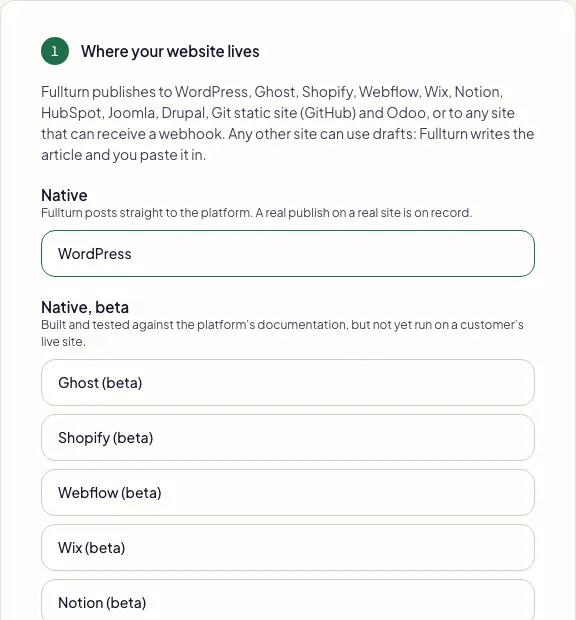
3. Enter the address, username and application password
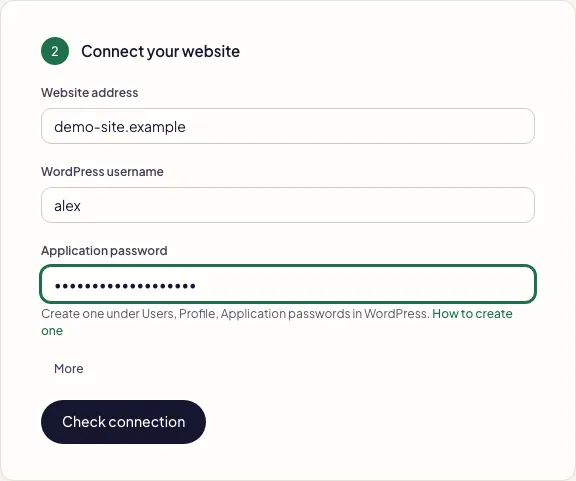
In step 2, Connect your website, fill in Website address (a bare domain such as
example.comis fine), WordPress username, and Application password. If WordPress should credit a specific author, press More and enter the Author user ID; left blank, WordPress keeps its default author.Press Check connection. Fullturn signs in to your site's WordPress REST API with the password and stores nothing until it works.
4. Read the answer
- Fullturn can sign in to your WordPress site. Success. Fullturn adds the site and saves the connection.
- WordPress refused this username and application password. Fix the username or password and try again.
- Fullturn could not reach that address. Check it is your public website. The address is wrong, private, or blocked.
- WordPress answered in an unusual way, so Fullturn did not save the connection. When in doubt, Fullturn saves nothing. See the errors below.
5. Install the Fullturn plugin (recommended)
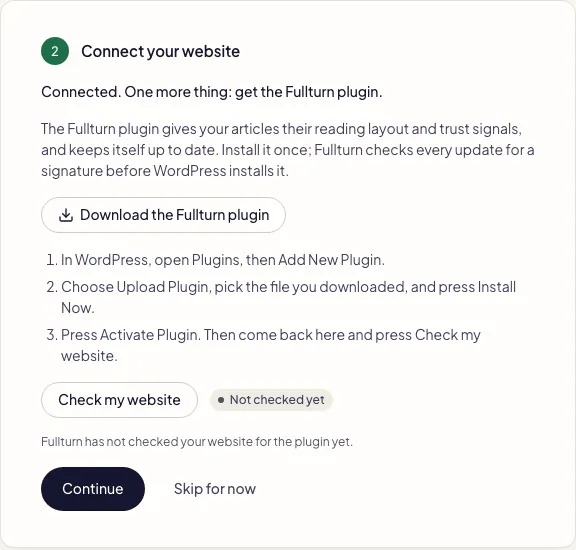
After the connection is saved, Fullturn says "Connected. One more thing: get the Fullturn plugin." The plugin gives your articles their reading layout and trust signals and keeps itself up to date; Fullturn checks every update for a signature before WordPress installs it. It is a one-time step.
- A Fullturn owner or admin downloads the file from the panel. Anyone else sees "Only a team owner or admin can download the plugin. Ask one of them to send you the file."
- In WordPress, open Plugins, then Add New Plugin.
- Choose Upload Plugin, pick the file you downloaded, and press Install Now.
- Press Activate Plugin. Come back to Fullturn and press Check my website.
You can press Skip for now and install it later from Site settings.
6. Let Fullturn read your site
Step 3 is Fullturn imports your site. Fullturn reads your website and learns what you sell, which takes a minute or two. Step 4 is SEO language; English is the only language today. Press Finish.
Choose how articles reach the site
Connecting does not publish anything by itself. Open Content, then Site settings, then Autopilot. The Publishing setting has three choices: Manual (nothing is published unless you press Publish on the article), Review queue (every finished article waits for your approval) and Automatic (articles pass quality checks, wait out your review window, and publish if you do not approve them first).
Common errors and fixes
- WordPress answered in an unusual way, so Fullturn did not save the connection. Fullturn did not get a WordPress answer from this address. Check the address and the application password, then try again.
- Usually a firewall or security plugin is answering in place of WordPress, or the REST API is blocked. Check the address is exactly your WordPress site, allow Fullturn through the security plugin, and make sure the REST API (
/wp-json/) opens in a browser. - WordPress refused this username and application password.
- Check the username (not the display name), paste the password again, and confirm Application passwords are enabled. WordPress reports
application_passwords_disabledwhen a host or plugin has switched them off. - Fullturn could not reach that address. Check it is your public website.
- Use your public website address. A staging site behind a login, an intranet name or a private address cannot be reached.
- Enter the WordPress user number, a whole number such as 2.
- The Author user ID must be a whole number: open the user in WordPress and read the
user_idin the address bar. - Your plan includes 1 site. Upgrade in Billing to add another.
- The number in the message is your plan's site limit. Remove a site you do not use or upgrade under Billing.
- Fullturn could not check this connection. Try again.
- The check itself failed to run. Try again in a moment.
- The website rejected Fullturn's sign-in. Reconnect it in Integrations.
- This appears on an article later, when the password was deleted or the user lost the right to publish. Make a new application password and reconnect.
- Fullturn found a post at this article's address on your site, so publishing this article again would put it on your site twice.
- Fullturn will not create a duplicate. Open the post in WordPress: if it is this article, it is already there; if it is a post you no longer want, move it to Trash and Fullturn publishes on a later pass.
FAQ
- Does Fullturn see my WordPress password?
- No. It only holds the application password you created, which works for the WordPress REST API and cannot be used to sign in to the admin screen. Delete it under Users, Profile at any time to cut Fullturn off.
- Do I need the plugin?
- No, publishing works without it. The plugin adds the reading layout and trust signals to your articles and updates itself. It is recommended and takes two minutes.
- Will Fullturn publish without my approval?
- Only if you choose Automatic. The default Review queue holds every finished article until you approve it.
- Can I connect more than one WordPress site?
- Yes, as far as your plan's site limit allows. Each site is set up separately.
- Does it work with Elementor or WooCommerce?
- Yes. Fullturn talks to the WordPress REST API, which both leave in place.
- What if my WordPress is not live yet?
- Fullturn needs a public address to read and to check each published page. Connect it once the site is reachable.