How to connect a Shopify blog to Fullturn to publish articles automatically
By the Fullturn team · · 4 min read
Fullturn publishes to a blog on your Shopify store (Online Store, then Blogs). It signs in with an Admin API access token from an app you create on your store, and it needs your shop address and the number of the blog the articles should go into.
What you need first
- A Shopify store with a blog (Shopify creates one called News by default).
- Permission to create an app on your store and to give it access to write content.
- Your shop address in the form
your-shop.myshopify.com. - The blog's ID.
Steps
1. Create the app and its access token
In Shopify admin, create a custom app for your store and give its Admin API access permission to write content (
write_content). Install the app and copy its Admin API access token. Shopify shows the token once.Screenshot: Shopify admin custom app with the write_content Admin API scope and the access token 2. Allow image uploads (optional)
Fullturn uploads a featured image to your store's files before it attaches it to the article. If you want images, give the same app permission to write files as well. Without it, the article can still publish, but its image upload may be refused.
3. Find the blog ID
In Shopify admin, open Online Store, then Blogs, and open the blog. The blog ID is the number at the end of the address in your browser, such as
123456789.Screenshot: Shopify admin address bar showing the blog ID 4. Choose Shopify in Fullturn
In Fullturn, open Content and start Set up your website. In step 1, choose Shopify (beta) and press Continue.
5. Enter the shop address, token and blog ID
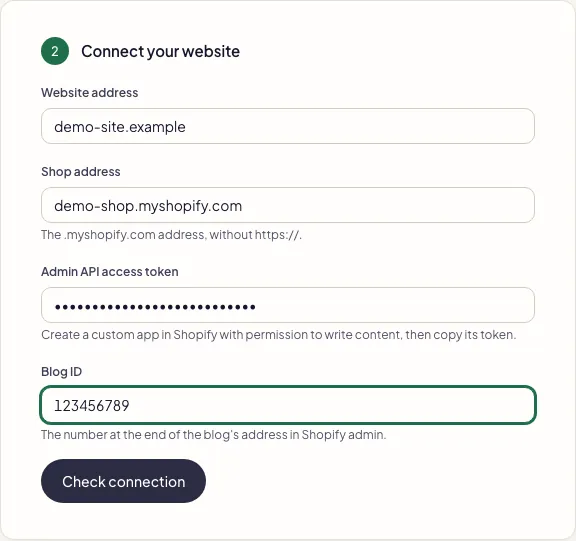
In step 2, fill in Website address, Shop address (
your-shop.myshopify.com, withouthttps://), Admin API access token and Blog ID, then press Check connection. Fullturn makes one read-only request to the shop and publishes nothing.- Fullturn can connect to your Shopify site. Fullturn saves the connection.
- Shopify refused these details. Check the key or token and try again. The token is wrong or lacks permission.
- Fullturn could not reach that address. Check it is your public website. For Shopify this also means the shop address was not found. Check the spelling.
How an article is published
Fullturn first checks the blog exists and matches the ID you gave, then creates the article, and reads back its handle to build the address. It updates the same article when it edits one.
Common errors and fixes
- Enter the shop address only, such as your-shop.myshopify.com, without https:// or anything after it.
- Remove
https://, any slash, and any path. The address must end in.myshopify.com. - Enter the blog number, a whole number such as 123456789.
- The blog ID is digits only. Copy it from the end of the blog's address in Shopify admin.
- Shopify refused these details. Check the key or token and try again.
- The token was rejected. Check that the app is installed and that you copied the token, not the API key or secret.
- Shopify blog lookup failed: HTTP 404
- No blog with that ID exists on the shop. Check the blog ID and the shop address.
- Shopify did not confirm the configured blog
- Shopify answered, but not with the blog you configured. Check the blog ID.
- Shopify publish failed: HTTP 403
- The token is valid but lacks permission to write content. Add
write_contentto the app and reinstall it. - Shopify requires numeric blog and article identities
- The saved blog ID is not a number. Edit the destination under Content, Publishing.
- Shopify rejected the media upload: …
- Shopify refused the image. Check the app can write files; the article's text can still publish.
- Shopify did not finish processing the uploaded media in time
- Shopify processes images in the background. Fullturn waits a few seconds and tries again later.
FAQ
- Is Shopify publishing supported?
- It is in beta. The connector is tested against Shopify's documentation but has no recorded publish on a live store.
- Does it work with the Shopify Blog in Online Store 2.0 themes?
- Fullturn publishes through the Admin API to a store blog, whatever theme renders it.
- Can I publish to a blog other than the default?
- Yes. The connection points at one blog by its ID.
- Does Fullturn upload images?
- Yes, through Shopify's files, when the app has permission. Otherwise the image step is refused.
- Will it publish without my approval?
- Only if you choose Automatic publishing in Site settings. The default is the review queue.