How to import Zapmail mailboxes into Fullturn without typing passwords
By the Fullturn team · · 4 min read
Zapmail sells Google Workspace mailboxes. Fullturn can import them straight from your Zapmail account, so you do not copy an app password for each mailbox. You save your Zapmail API key once, pick the mailboxes, and Fullturn connects them with the app password Zapmail holds for each.
Under the hood these are ordinary Google Workspace mailboxes connected with an app password. Fullturn tests each one against Gmail before it saves it.
What you need first
- A Zapmail account with at least one mailbox, and your Zapmail API key (see Zapmail's documentation at docs.zapmail.ai).
- A Fullturn role that can change Settings, then Integrations, to store the key, and one that can connect mailboxes to import them. A read-only role cannot.
- Room in your Fullturn plan for the mailboxes you import. Each new sending mailbox counts toward your plan's mailbox limit.
Steps
1. Save your Zapmail API key
In Fullturn, open Settings, then Integrations, and find the Zapmail card in the mailboxes group. Paste your key into API key and save.
Screenshot: Fullturn Settings, Integrations with the Zapmail card and API key box 2. Open Import from Zapmail
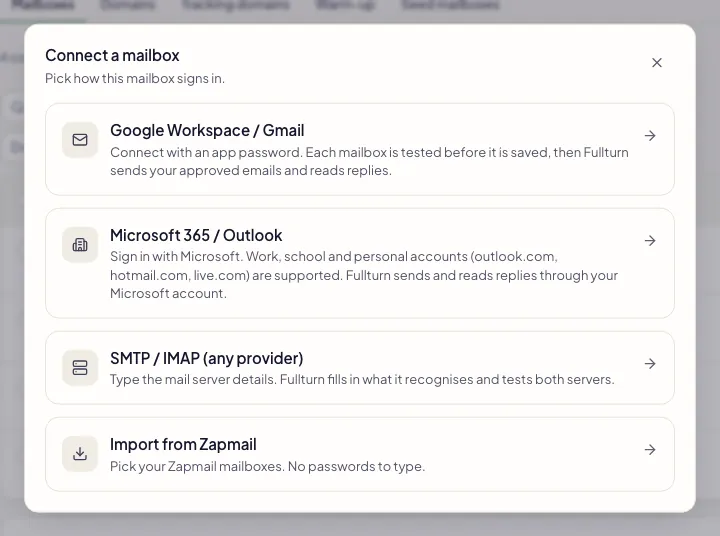
Go to Outreach, then Sending setup, then Mailboxes. Choose Connect mailbox and pick the Import from Zapmail tile, which reads "Pick your Zapmail mailboxes. No passwords to type." The same option is in the Mailboxes page menu.
3. Pick the mailboxes
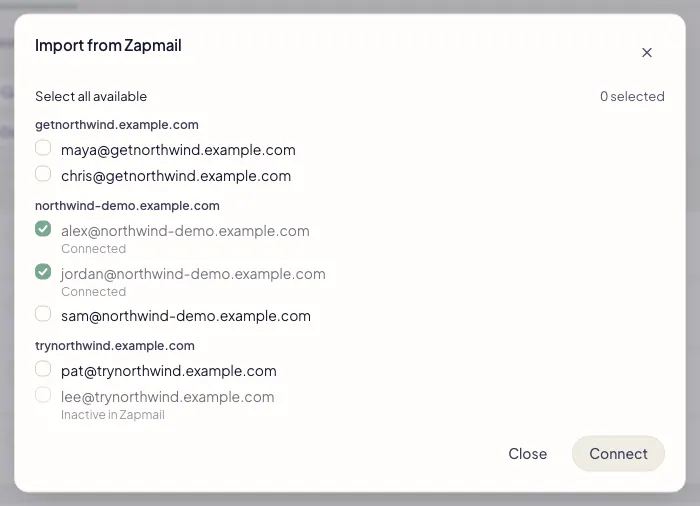
Fullturn lists your Zapmail mailboxes grouped by domain. A mailbox already in Fullturn shows Connected and one that Zapmail has switched off shows Inactive in Zapmail; neither can be picked. Tick the ones you want, or use Select all available. You can import at most 25 mailboxes at a time; if you tick more, Fullturn says "At most 25 mailboxes per import."
4. Press Connect and read the result
Press Connect. Fullturn takes the mailboxes one at a time: it fetches the mailbox from Zapmail, checks it is not already in your workspace, checks your plan has room, tests the app password against Gmail, and only then saves it. When it finishes, it lists every mailbox that connected and the reason for every one that did not.
Imported sending mailboxes start with warm-up on and a daily send limit of 30. Read email warm-up and the warm-up network before you launch to them.
If you imported too many for one go
Zapmail limits how fast an account can make requests. If it limits yours during an import, Fullturn stops, marks the mailboxes it did not reach, and tells you to run the import again in a few minutes. The ones it did connect stay connected.
Common errors and fixes
- Add your Zapmail API key in Settings → Integrations.
- No key is saved for your workspace. Do step 1, then open the import again.
- Zapmail mailboxes could not be loaded
- Fullturn could not read your mailbox list from Zapmail. Press Try again. If it keeps failing, check that the key you saved is current.
- Zapmail is limiting requests from your account right now. Run the import again in a few minutes.
- Wait a few minutes and import again. Nothing already connected is lost.
- Zapmail is limiting requests from your account right now. Nothing was imported. Run the import again in a few minutes.
- The limit hit before the first mailbox. Wait a few minutes and import again.
- already connected
- That address is already in your workspace. Open it from the Mailboxes list.
- Zapmail has no app password for this mailbox
- Zapmail did not give Fullturn an app password for it. Check the mailbox in Zapmail, or create an app password in Google yourself and connect it with the Gmail app password guide.
- Google rejected the app password: check 2-Step Verification is on for this mailbox
- The password Zapmail holds no longer works for this mailbox. Check the mailbox in Zapmail and Google, or connect it with a fresh app password.
- Your plan's mailbox limit has been reached.
- What fits connects and the rest are refused with this message. Upgrade under Settings, then Billing, or remove a mailbox you do not use.
- Could not import this mailbox
- Fullturn got an error it cannot name. Try that mailbox again on its own.
FAQ
- Does Fullturn need my Google passwords for Zapmail mailboxes?
- No. Fullturn uses the app password Zapmail holds for each mailbox, tests it, and stores it encrypted. You never type it.
- Can I import the same mailbox twice?
- No. A mailbox already in your workspace is skipped with "already connected".
- Which mailboxes does this support?
- Zapmail's Google Workspace mailboxes, connected the same way as any Gmail or Google Workspace mailbox.
- Do imported mailboxes send cold email straight away?
- No. They warm up first and Fullturn keeps their real daily limit lower until they have earned more. The default limit is 30 a day.
- Can I import mailboxes only for the warm-up network?
- Fullturn has a network-only role for mailboxes that join the shared warm-up network and never send campaigns. That option is for the workspace that runs the network.