How to launch your first cold email campaign in Fullturn
By the Fullturn team · · 6 min read
A Fullturn campaign sends a sequence of emails to a list of contacts from one or more of your mailboxes. The setup is four steps: Who, What, How and Review. Nothing is sent until you press Start campaign on the last one.
Fullturn checks a list of things for you before it lets you start, and tells you in plain words what is missing and where to fix it. This guide covers the checks too.
What you need first
- At least one connected mailbox. See the guides for Gmail, Microsoft or any mailbox by SMTP and IMAP.
- A contact list. Open Audience, then Import to bring contacts in; the campaign setup also links to the import page.
- A physical mailing address in Settings, Team, Outreach. Fullturn requires it before any campaign can launch, because commercial email law such as CAN-SPAM requires one in every footer.
- An email verifier connected in Settings, Integrations, if your workspace requires verified contacts. Fullturn only sends to contacts it has a fresh verification for.
Steps
1. Open the campaign setup
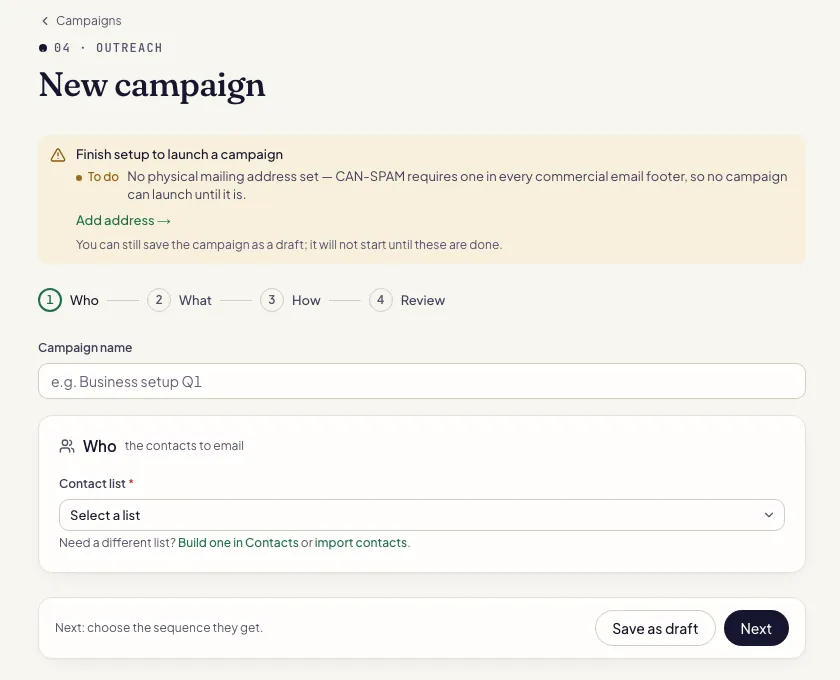
Open Outreach, then Campaigns, and start a new campaign. If something stops your workspace launching anything at all, a banner at the top says "Finish setup to launch a campaign" and lists each item with the page that fixes it, such as Add address or Connect verifier. You can still save a draft; it will not start until those are done.
2. Who: name the campaign and pick the list
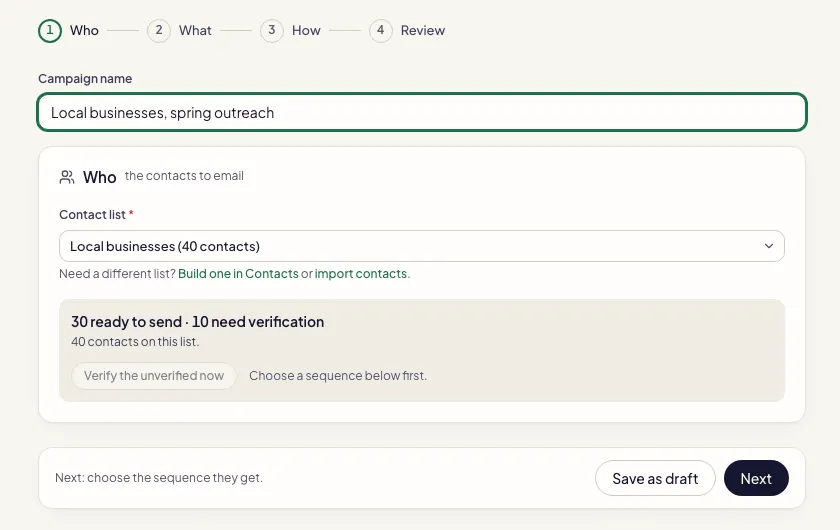
Give the campaign a Campaign name, for example "Business setup Q1", and choose a Contact list. Fullturn shows how many contacts are on it and how many are verified.
If some are not verified, Fullturn offers to verify them: "Verify the unverified contacts?" It checks up to that many contacts with your email verifier, skips contacts with a fresh verification, and never goes past this month's allowance. Unverified contacts are left out of the campaign.
3. What: choose the sequence
Choose a Sequence, the series of emails and waits that each contact receives, or write a new one with AI from this screen. Fullturn shows the steps under What they receive. A sequence written with AI is not saved until you press the button to use it.
Each step can have a send condition, such as sending only if the contact opened the last email. See the sequence builder for the options.
4. How: choose mailboxes and pace
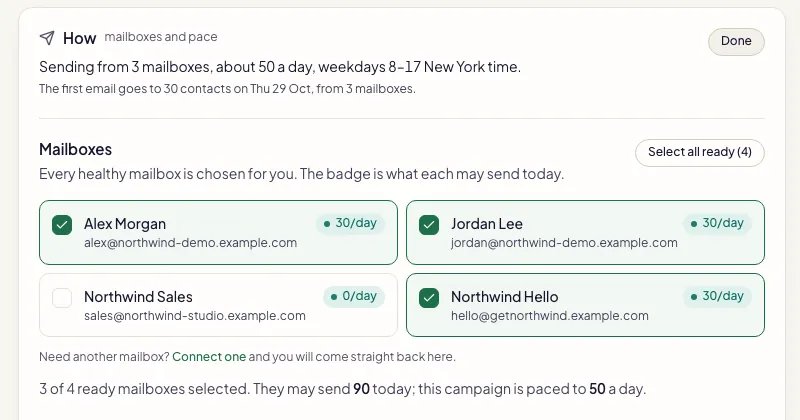
The How card is one sentence with a Change button. Open it to pick which mailboxes send. Each mailbox shows what it may send today: for example
12/day, Limited or Recovering when its reputation is being protected, Paused, or Not checked today. A new mailbox sends little at first because it is warming up.- Timezone, Start sending at and Stop sending at: by default sends happen between 8 and 17 in the timezone you choose.
- Send on weekends too: off by default.
- Or set your own daily total: the daily cap for the whole campaign, 50 by default. Each mailbox is still held to what it may send today.
5. Review: read the launch check
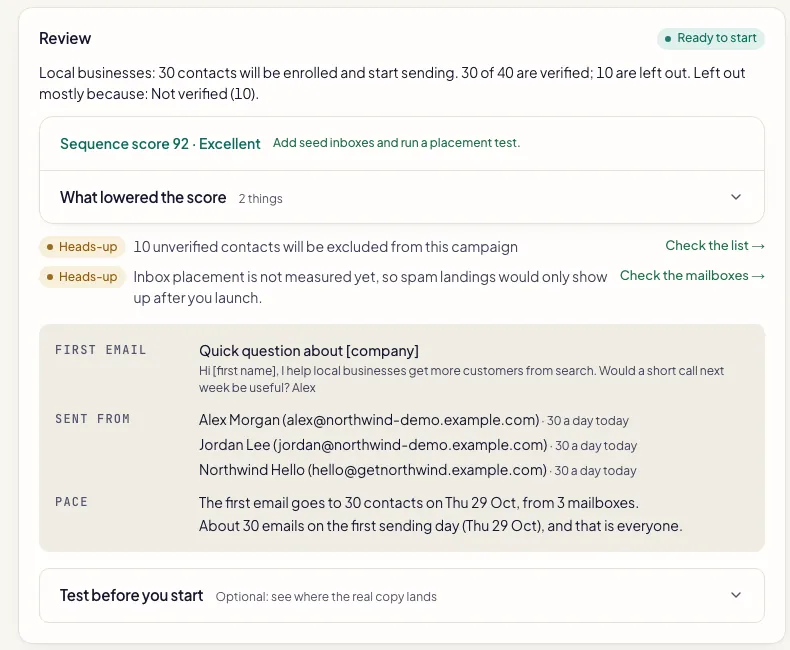
The Review card shows Ready to start or Not ready yet, who will be enrolled, what the first email is, each mailbox's limit and the pace in words. Blockers are in red and must be fixed; warnings are in amber and do not stop you.
Optionally open Test before you start. Add a seed inbox that Fullturn can read, run a test, and see where the real copy lands. Tests are limited per day.
6. Press Start campaign
Press Start campaign. You land on the campaign page. If the only thing in the way is something Fullturn itself fixes, such as verifying recipients, it says "Campaign approved" and starts as soon as the recipients are verified.
If you are not ready, press Save as draft. "Your campaign is saved as a draft. Nothing is sent until you press Start campaign."
After it starts
When a contact replies, the sequence stops for them and the reply lands in your inbox. Read how to read replies and use reply labels. Keep an eye on bounces and complaints on the Deliverability page; Fullturn pauses a campaign or rests a mailbox when its rules are crossed.
Common errors and fixes
- No physical mailing address set — CAN-SPAM requires one in every commercial email footer, so no campaign can launch until it is.
- Click Add address, or open Settings, Team, Outreach, and fill in the mailing address.
- Sending requires verified contacts, but no verification provider is connected.
- Connect an email verifier under Settings, Integrations.
- None of the 40 contacts in this list will be enrolled (40 unverified, 0 excluded). Verify the list first.
- Verify the list from the Who step, or from Audience.
- Connect a mailbox first
- Your workspace has no active mailbox. Connect one from Sending setup, Mailboxes.
- None of your mailboxes can send today: each one is inactive or paused.
- Open Deliverability to see why each mailbox is paused or inactive.
- Sequence has no email steps to send
- Add at least one email step to the sequence.
- 12 unverified contacts will be excluded from this campaign
- The number changes with your list. This is a warning, not a blocker. Verify them first if you want them included.
- Unsubscribe links can't be built because the tracking address isn't set up yet — add a tracking domain under Sending, then try again
- Add a tracking domain under Sending setup, Tracking domains.
- Reply detection is unhealthy — replies may not stop sequences automatically
- A mailbox's IMAP is failing. Reconnect the mailbox before you send.
- Nobody would be enrolled with this list and these rules.
- Nothing on the list is both eligible and verified. Change the list or verify contacts.
- Fullturn could not confirm whether the campaign started. Open the campaign to see its status before you try again.
- Do not press Start again. Open the campaign to see whether it started.
- The audience could not be checked. Reload this page to try again.
- Reload the page.
FAQ
- Can I start with a brand-new mailbox?
- You can, but it will send very little at first. A new mailbox warms up, and Fullturn holds its real limit lower until it has earned more. See email warm-up.
- Does Fullturn send to unverified contacts?
- No. Contacts without a fresh verification are excluded. Anything in doubt is held, not sent.
- Where do I follow a running campaign?
- On the campaign page you land on after Start. Replies arrive under Inbox, then Replies.
- What happens when someone replies?
- The sequence stops for that contact and the reply appears in your inbox, classified for you.
- Can several mailboxes send one campaign?
- Yes. Pick more than one in the How card. Each is held to its own daily limit.