How to read cold email replies and set up reply labels in Fullturn
By the Fullturn team · · 5 min read
Every reply to a campaign lands in one place: Inbox, then Replies. Fullturn reads each reply, gives it an outcome such as Interested or Not interested, stops the sequence for that contact, and lets you answer without leaving the page.
On top of its built-in outcomes, you can define your own reply labels (for example "Asking for price") and say what should happen when a reply matches.
What you need first
- A campaign that has sent, and a mailbox whose reply reading (IMAP) works. Fullturn reads the mailbox to catch replies.
- To define reply labels: an owner or admin role. Anyone on the team can see labels.
Steps
1. Open the reply inbox
Open Inbox, then Replies. The left side has views: All replies, Unread, Starred, Archived, Unmatched (a reply Fullturn could not tie to a contact) and Held for review. Outcome filters sit below them.
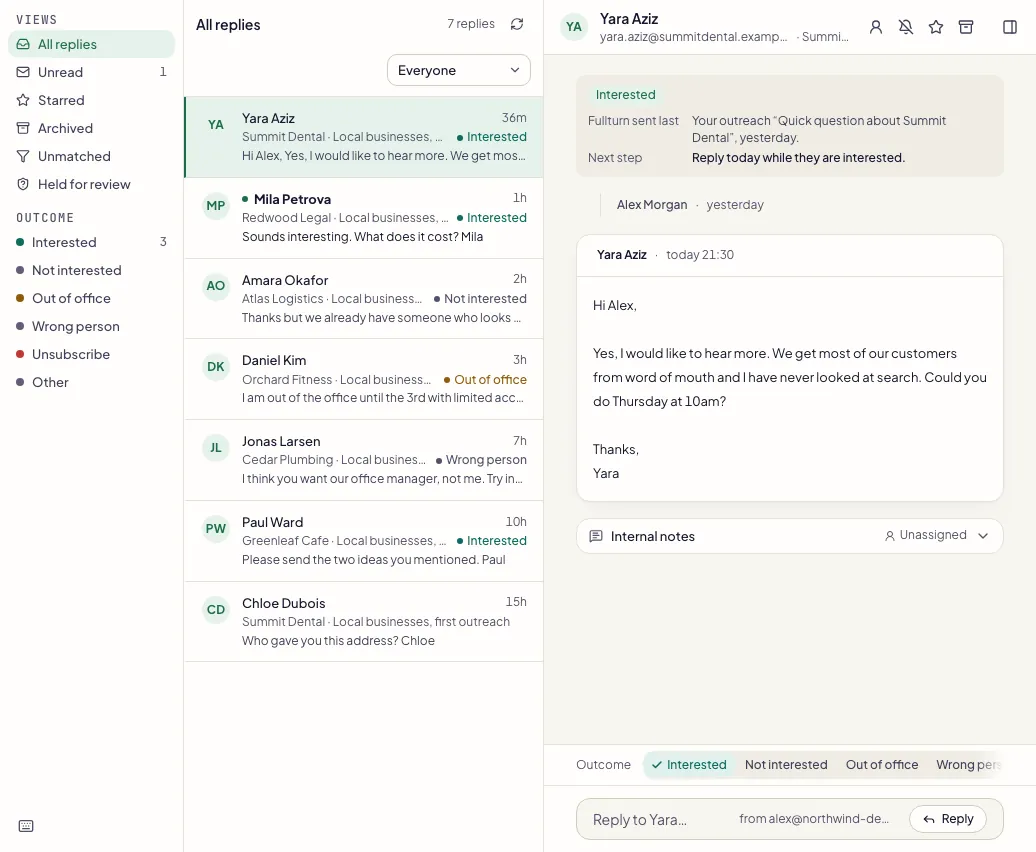
2. Check the outcome
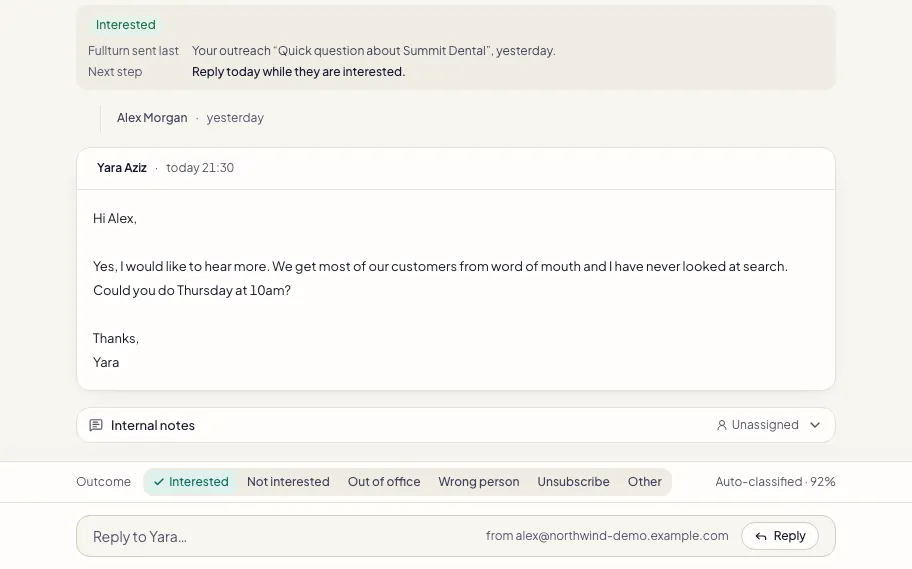
Under an open reply, the Outcome row shows one of six outcomes: Interested, Not interested, Out of office, Wrong person, Unsubscribe or Other. Fullturn picks one and shows how sure it is, for example "Auto-classified · 92%", or "AI suggests interested · 70%" when it disagrees with the current one. Click another outcome, or press the numbers 1 to 6, to correct it.
3. Handle held opt-outs
If a reply might be someone opting out, Fullturn holds it under Held for review and keeps their sequences paused. Read it and choose: confirm the unsubscribe ("Every sequence they were in has stopped."), or mark it as not an opt-out ("Their sequences stay paused. Resume them when you are ready.").
4. Reply from Fullturn
Press Write a reply, check the subject, write your message and press Send reply.
5. Create a reply label (owner or admin)
Open Settings, then Automations, and find Reply labels. Add a label and fill in:
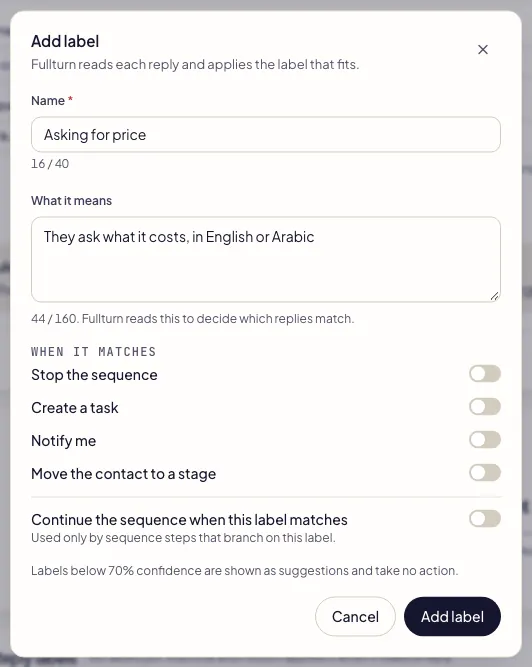
- Name: up to 40 characters, such as "Asking for price". It cannot repeat a built-in outcome name or another label.
- What it means: up to 160 characters, such as "They ask what it costs, in English or Arabic". Fullturn reads this to decide which replies match, in English or Arabic.
You can have up to 10 labels.
6. Choose what happens when a label matches
Under When it matches, switch on any of these:
- Stop the sequence: stops the contact's running sequences.
- Create a task: a manual task titled with the label, linked to the contact.
- Notify me: an in-app notification, "Reply labelled <name>".
- Move the contact to a stage: NEW, CONTACTED, ENGAGED, REPLIED, CUSTOMER or LOST.
Every action is off by default, so a label can just be a label. Continue the sequence when this label matches is a separate option that puts a replied sequence back on its way when the next step is set to wait for this label; it cannot be combined with Stop, and a reply that says no, unsubscribe or wrong person never continues a sequence.
7. Read the label on a reply, and undo it
A reply that matches a label with confidence of 0.7 or more is labelled, and its actions run. Below 0.7 it is only suggested: the label is shown, nothing runs, and an owner or admin can choose Apply. Under each message, the label line shows the label, what it did, and Undo. Undo reverses a task, a stage move or a continued sequence where it still can; a sequence that was stopped stays stopped, and a notification is not recalled.
Use the Label filter in the inbox to narrow the replies already loaded; load more to look further back.
Branch a sequence on a label
A sequence step can wait for a label before it sends, using a send condition that watches for a reply with your label. That lets "Asking for price" get a pricing email and everyone else a different follow-up. Only labelled replies at 0.7 or more count.
Common errors and fixes
- Only team owners and admins can change labels.
- Ask an owner or admin to define or edit the labels.
- Reply labels could not be loaded.
- Press Try again, or refresh the page.
- Fullturn could not save the labels. Try again.
- Check the names are unique, at most 40 characters, and not a built-in outcome name. You can have up to 10.
- This label stops the sequence, so it cannot also continue it.
- Turn off Stop the sequence or turn off Continue the sequence.
- A reply that says no, unsubscribe or wrong person never continues a sequence.
- A label named like a refusal cannot continue a sequence. Use a name that describes interest instead.
- Write your reply first.
- The reply box is empty.
- Add a subject.
- The subject box is empty. Add one before you send.
- That did not work. Try again.
- The action on a held opt-out failed. Try once more.
FAQ
- Does a reply stop the sequence?
- Yes. When a contact replies, the sequence stops for them.
- Do labels change Fullturn's built-in outcomes?
- No. Labels are an extra read of the same reply. The six outcomes stay as they are.
- Will a label send an email on its own?
- No. Label actions are stop, task, notification, stage and continue. They never write to the contact's mail system.
- Can a reply have more than one label?
- No. A reply gets one label or none.
- What if my AI allowance is used up?
- Fullturn then cannot read the reply for a label. Replies still arrive and stop the sequence, but no label is chosen.
- Can I delete a label?
- Yes. Fullturn stops applying it to new replies. Replies already labelled keep their label.